
Git and GitHub
✕Introduction to Git
- Distributed version control system (DVCS)
- Project code stored on remote repository (e.g., GitHub, GitLab, Bitbucket) and locally.
- Tracks changes in code over time
- Enables reverting to previous versions
- Allows collaboration with other developers
- Most Git operation is local and internet is required only for push/pull.
- Windows: Download and install Git from here.
- Mac: Open terminal and run
brew install git - Linux: Open terminal and run
sudo apt-get install git git-extras.
Installation
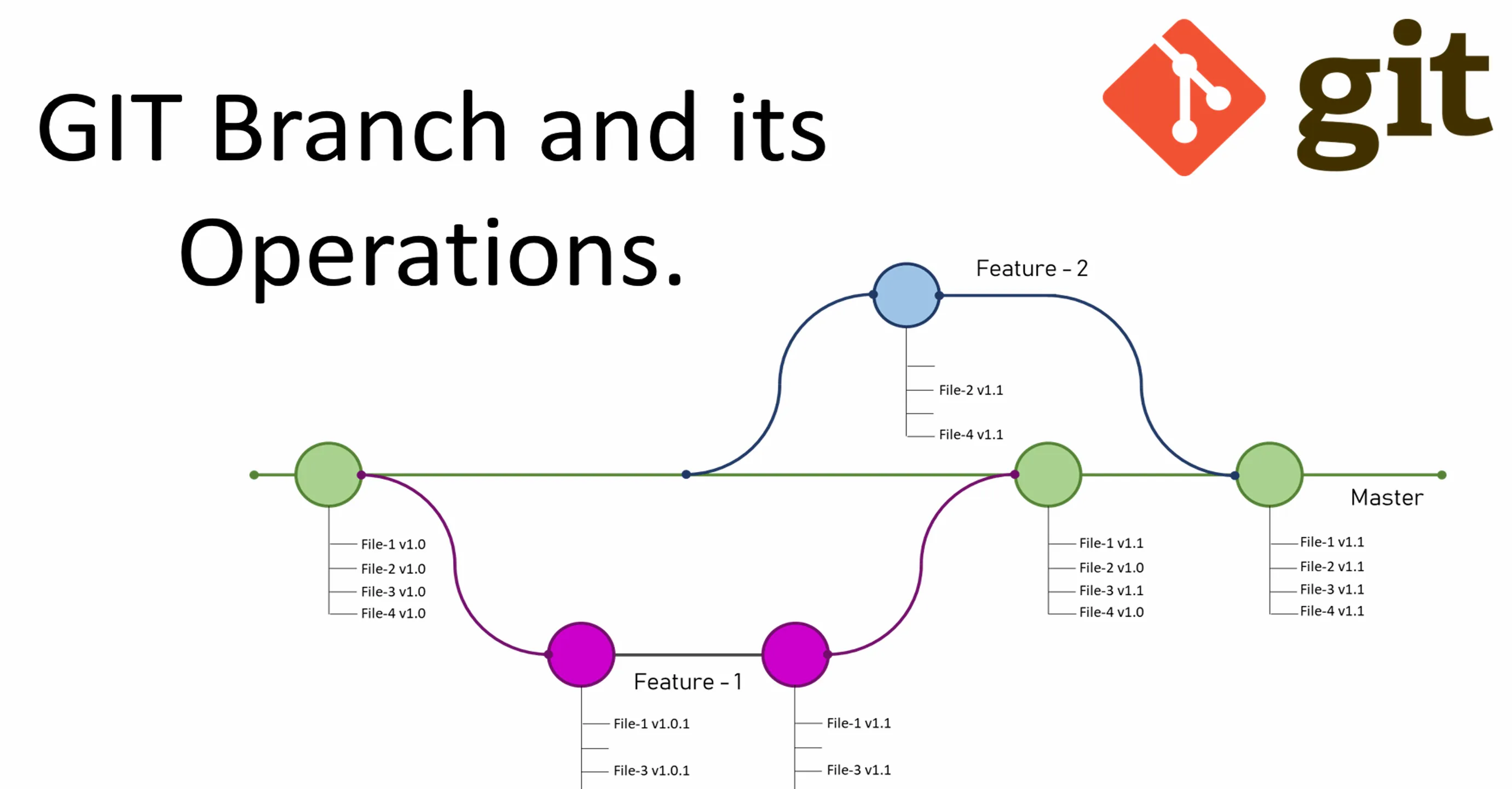
Git Operation in Picture.
Git Terminologies
- Repository: Directory that contains all project files and the history of changes.
- Commit: Snapshot of changes made to the codebase. Each commit has a unique ID and a message describing the changes.
- Branch: Separate line of development. Default branch is usually called
main/master. - Merge: Combining changes from one branch into another.
- Pull Request: Request to merge changes from one branch to another.
- Remote: Version of the repository hosted on a server (e.g., GitHub).
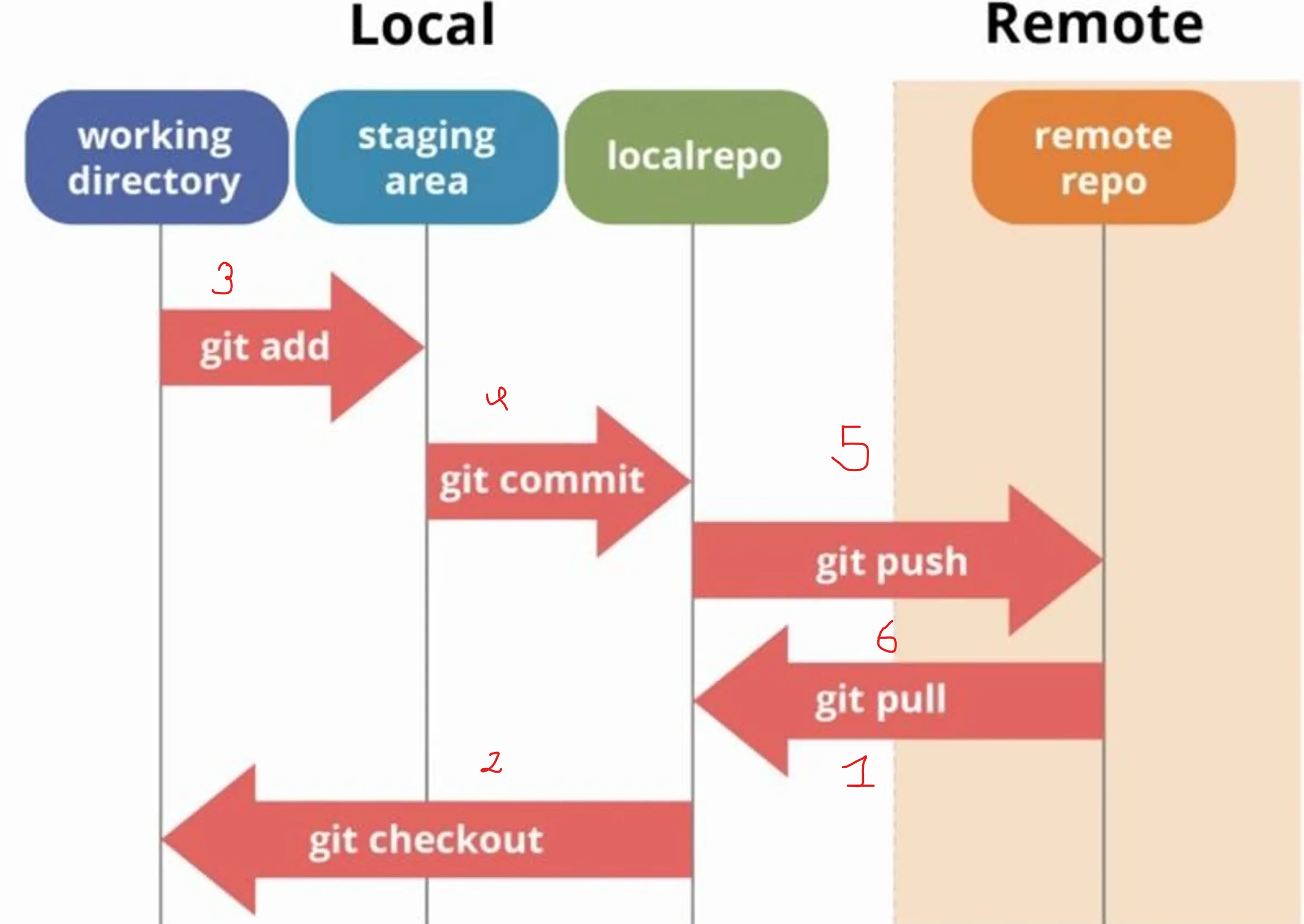
- Clone: Copying a remote repository to your local machine.
- Push: Uploading local commits to a remote repository.
- Pull: Fetching and merging changes from a remote repository to your local machine.
Git WorkFlow
Configuring Git
- Check Configuration:
git config --global --list - name and email are mandatory git configurations.
- They are used to identify the author of commits.
git config --global user.name "Your Name"git config --global user.email "Your Email"- SSH keys are used for secure authentication with remote repositories.
- We won't be asked for username & password every time we push if SSH keys are set.
cd ~
mkdir .ssh
cd .ssh/
ssh-keygen -t rsa -b 4096 -C "Your Email"
# Hit Enter until keys are generated.- Copy content of
id_rsa.pub - Goto GitHub => Setting => SSH and GPG Keys
- Click on New SSH Key, paste copied content and click add to save.
Configuring Name and Email
Configuring SSH
Initializing Project
- Goto GitHub and create a new repository for pushing your code.
- Since, you already have code for this goto 2nd section and copy code.
- Open VSCode terminal and Paste code. It will be similar to:
git remote add origin some_link.gitgit branch -M maingit push -u origin main - We don't want to track all files in our project. Eg.
.log,venv/,test.csvetc. - For this, create a
.gitignorefile in the root of your project. - Add file patterns to ignore in this file.
- Example:
venv/,*.log,test.csvetc.
Git Ignore:
Working on New Features
- Pull latest changes:
git pull origin main# GUI: Click sync icon in bottom left. - Create new branch dev:
git checkout -b dev# GUI: Click branch name in bottom left. - Add new file and your code changes
- Stage file:
git add file_1.py file_2.py# Click git icon on left and click+. - Commit changes:
git commit -m "message"# GUI: Type message and click commit. - Push changes to remote:
git push origin dev# GUI: Click on sync change - Checkout to main branch:
git checkout main# GUI: Click branch name in bottom left. - Create pull request from dev to main. # From GitHub Website
- Review and Merge pull request. # From GitHub Website
Pull Request (PR)
- There will be main branch and seperate feature branch for each new features.
- When code for new feature is completed, we need to merge it to main branch.
- Pull request is a way to request merging of one branch to another.
- PR allows code summary, review and discussion before merging.
- We need to add why, what and how in PR description to make it easier for reviewers to understand the changes and reason behind it.
- PR description can be generated with copilot. Type
PR description for {branch}.