
Git and GitHub
✕1. 🌱 Introduction to Git
- Git is a distributed version control system. Version control means tracking changes in files over time. Git helps developers: ✅ Track changes in code ✅ Save different versions of a project ✅ Go back to previous versions when needed ✅ Work on new features safely using branches ✅ Collaborate with other developers Git is called distributed because every developer can have a full copy of the project and its history on their own computer. Most Git operations are local. Internet is usually needed only when we push code to a remote repository or pull code from a remote repository.
- Imagine you are working on a Python project. Without Git, you may create files like:
project_final.pyproject_final_2.pyproject_final_latest.pyproject_final_latest_fixed.pyThis becomes confusing. With Git, we can save proper versions using commits. Each commit works like a save point. If something goes wrong, we can check previous versions and recover code. - Git is the version control tool. GitHub is an online platform where Git repositories can be hosted. Common platforms for hosting Git repositories: - GitHub - GitLab - Bitbucket A project can exist: - Locally on your computer - Remotely on GitHub or another hosting platform Example: Local repository: Stored on your computer. Remote repository: Stored on GitHub.
1.1 What is Git?
1.2 Why Use Git?
1.3 What is GitHub?
2. 🛠️ Installing Git
- Windows: Click here to Download and install.
macOS: Use Homebrew:
brew install gitLinux: For Ubuntu:sudo apt-get install git git-extrasVerify Installation: After installing Git, check version:git --version
For different OS
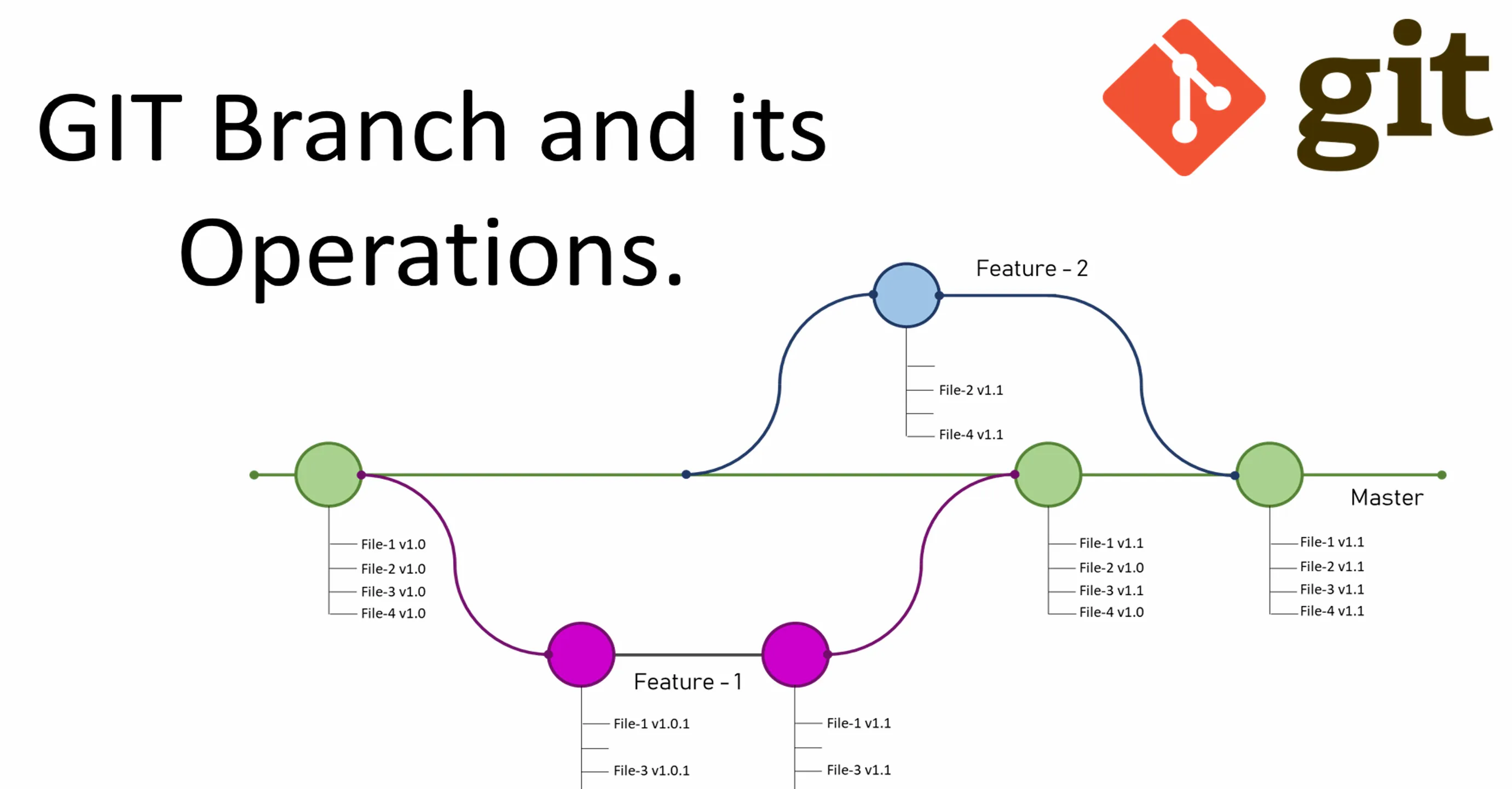
3. 🖼️ Git Operation in Picture.
4. 📚 Git Terminologies
- A repository, or repo, is a project folder tracked by Git. It contains: - Project files - Folder structure - Git history
- A commit is a snapshot of changes. Each commit has:
- Unique ID
- Author information
- Date and time
- Commit message
Example:
git commit -m "Add login page" - A branch is a separate line of development. The default branch is usually:
mainor sometimesmasterBranches allow us to work on new features without directly changing the main branch. - Merge means combining changes from one branch into another.
Example: Merging
devbranch intomainbranch. - A pull request, often called PR, is a request to merge changes from one branch into another. Pull requests allow: - Code review - Discussion - Suggestions - Approval before merging
- A remote is a version of the repository hosted on a server. Example: GitHub repository
- Clone means copying a remote repository to your local computer. Example: git clone https://github.com/username/project.git
- Push means uploading local commits to the remote repository.
Example:
git push origin main - Pull means downloading changes from remote repository and merging them into your local branch.
Example:
git pull origin main - The staging area is a place where we prepare files before committing.
Command:
git add file_name
4.1 Repository
4.2 Commit
4.3 Branch
4.4 Merge
4.5 Pull Request
4.6 Remote
4.7 Clone
4.8 Push
4.9 Pull
4.10 Staging Area
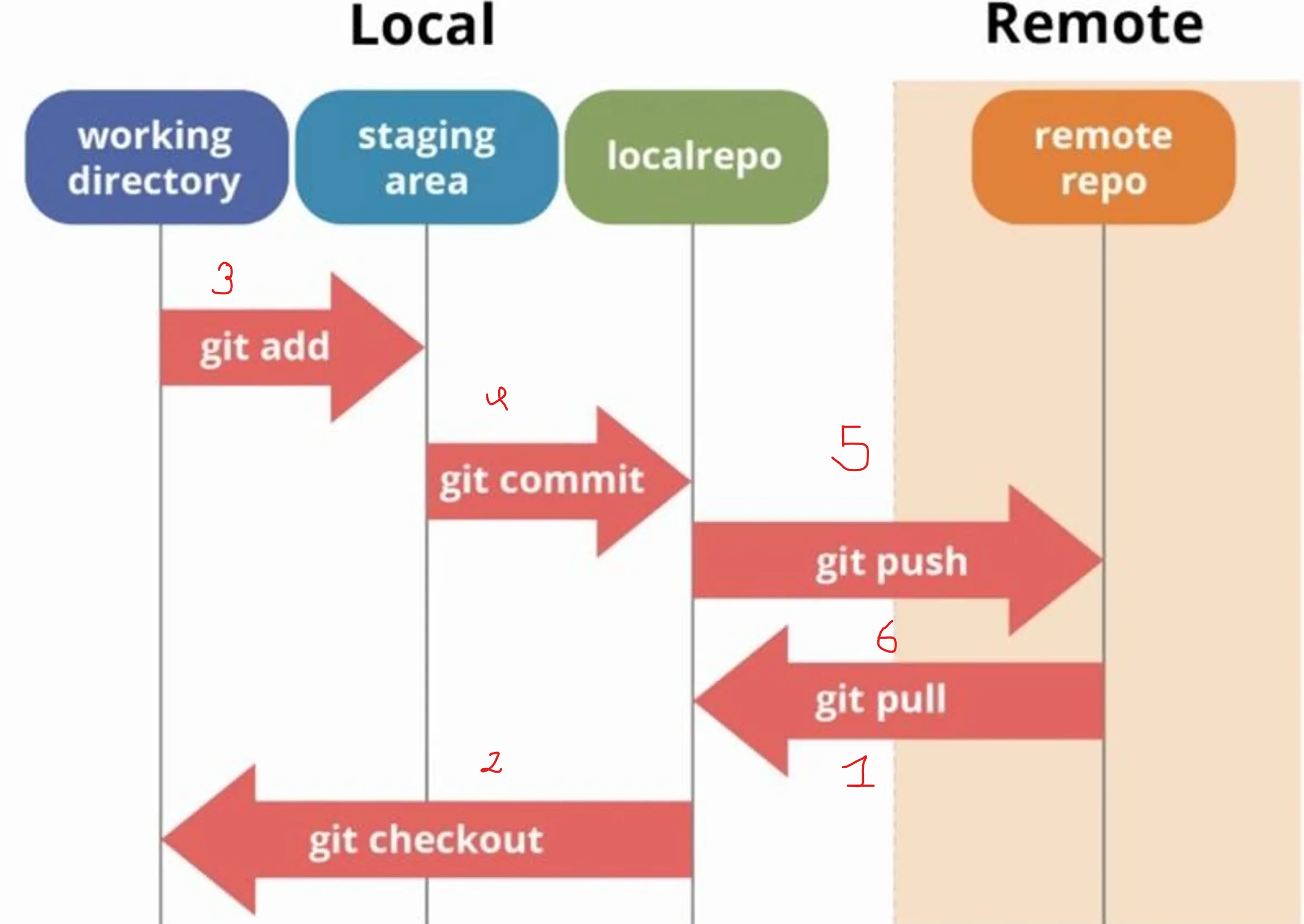
5. 🔁 Basic Git Workflow
- 1. Make changes in files.
2. Check changed files.
3. Stage files.
4. Commit changes.
5. Push changes to remote repository.
Commands:
git statusgit add .git commit -m "message"git push origin branch_nameGit WorkFlow in Picture
5.1 Common Git Flow
- Files can be in different states:
Untracked: Git sees the file, but it is not tracking it yet.Modified: File is changed after being tracked.Staged: File is ready to be committed.Committed: File changes are saved in Git history.
5.2 Git File States
6. ⚙️ Configuring Git
- Check current configuration:
git config --global --listSet User Name and Email:git config --global user.name "Your Name"git config --global user.email "[email protected]"Validate configuration:git config --global --list
6.1 Git for minimal configuration
7. 🔐 Configuring SSH for GitHub
- SSH is used for secure authentication with remote repositories. If SSH is set up, we do not need to enter username and password every time we push or pull.
Generate SSH Key
Open terminal and run:
ssh-keygen -t rsa -b 4096 -C "[email protected]"Press Enter until the key is generated. Copy Public Key Public key file is usually:id_rsa.pubOpen the file and copy its content. - Steps: 1. Open GitHub. 2. Go to Settings. 3. Click SSH and GPG keys. 4. Click New SSH key. 5. Paste copied public key. 6. Click Add SSH key.
- Command:
ssh -T [email protected]If successful, GitHub should confirm authentication.
7.1 What is SSH?
7.2 Add SSH Key to GitHub
7.3 Test SSH Connection
8. 🚀 Initializing and Pushing Project to GitHub
- Steps: 1. Go to GitHub. 2. Click New repository. 3. Enter repository name. 4. Create repository.
- Open project folder in VS Code terminal.
Command:
git initCheck status:git status - Command:
git remote add origin repository_link.gitExample:git remote add origin [email protected]:username/project-name.git - Command:
git branch -M main - Stage files:
git add .Commit:git commit -m "Initial commit" - Command:
git push -u origin mainAfter this, your local project is connected to GitHub.
8.1 Create Remote Repository
8.2 Initialize Git in Existing Project
8.3 Add Remote Repository
8.4 Set Branch Name
8.5 Stage and Commit Files
8.6 Push Code to GitHub
9. 🙈 .gitignore File
.gitignoretells Git which files or folders should not be tracked. Some files should not be pushed to GitHub. Examples: - Virtual environment folders - Log files - Temporary files - Secret files - Large generated files- Create a file named:
.gitignorePlace it in the root folder of your project. - Example:
venv/*.logtest.csv.env__pycache__/*.pyc - We usually ignore:
venv/Because it can be recreated using requirements.txt..envBecause it may contain secrets like passwords and API keys.*.logBecause log files are generated automatically.__pycache__/Because Python creates it automatically.
9.1 What is .gitignore?
9.2 Create .gitignore
9.3 Example .gitignore
9.4 Why Ignore Files?
10. 🌿 Working with Branches
- Branches help us work on new features safely.
Example:
mainbranch: Stable working code.devbranch: New feature or experimental work. This keeps main branch clean and stable. - Before starting work, pull latest changes from main:
git pull origin main - Command:
git checkout -b devThis creates and switches to dev branch. - Command:
git branchThe current branch is usually marked with*. - Command:
git checkout mainor:git checkout dev - After editing files:
git statusgit add .git commit -m "Add new feature" - Command:
git push origin dev
10.1 Why Use Branches?
10.2 Pull Latest Changes
10.3 Create New Branch
10.4 Check Current Branch
10.5 Switch Branch
10.6 Make Changes and Commit
10.7 Push Branch to Remote
11. 🔀 Pull Request Workflow
- A pull request is a request to merge one branch into another.
Example:
Merge
devbranch intomainbranch. Pull requests are useful because they allow: ✅ Code review ✅ Discussion ✅ Suggestions ✅ Summary of changes ✅ Safer merging - Steps: 1. Pull latest main branch. 2. Create a new feature branch. 3. Make changes. 4. Commit changes. 5. Push branch to GitHub. 6. Create pull request. 7. Review changes. 8. Merge pull request.
- Steps: 1. Open GitHub repository. 2. Go to Pull requests tab. 3. Click New pull request. 4. Select base branch as main. 5. Select compare branch as dev. 6. Add title and description. 7. Click Create pull request.
- A good PR description should explain:
Why: Why this change is needed.What: What was changed.How: How the change was implemented. Example: Why: Users need a blog page. What: Added blog.html page. How: Created new HTML file and linked it from navigation. - You can ask Copilot to help generate PR description.
Example prompt:
PR description for dev branch
11.1 What is a Pull Request?
11.2 Common PR Flow
11.3 Create Pull Request on GitHub
11.4 What to Write in PR Description
11.5 PR Description with Copilot
12. 🧭 VS Code Git GUI Workflow
- GUI:
Click Sync icon in bottom left.
Command:
git pull origin main - GUI:
Click branch name in bottom left. Choose Create new branch.
Command:
git checkout -b dev - GUI:
Click Source Control icon on left. Click + beside changed files.
Command:
git add file_name - GUI:
Type commit message. Click Commit.
Command:
git commit -m "message" - GUI:
Click Sync changes.
Command:
git push origin dev
12.1 Pull Latest Changes
12.2 Create New Branch
12.3 Stage Files
12.4 Commit Changes
12.5 Push Changes