
Input, Output & Comments
✕1. Output using print()
print()is a built-in function used to display output on the screen. We can useprint()to display: 📝 Text 🔢 Numbers 📦 Variables 🧮 Expressions Examples:print("Hello")# ➜ Helloprint(5 + 2)# ➜ 7name = "Rabindra"print(name)# ➜ Rabindraage = 30print("I am", age, "years old")# ➜ I am 30 years old- Text must be written inside quotes.
Example:
print("Hello, World!")Output: Hello, World! - Numbers and expressions can be printed directly.
Example:
print(25)print(5 + 2)print(10 * 3)Output: 25 7 30 - We can store a value in a variable and print it later.
Example:
name = "Rabindra"age = 30print(name)print(age)Output: Rabindra 30 - We can print multiple values by separating them with commas.
Example:
name = "Rabindra"age = 30print("My name is", name)print("I am", age, "years old")Output: My name is Rabindra I am 30 years old 📌 When we use commas insideprint(), Python automatically adds spaces between values.
1.1 What is print()?
1.2 Printing Text
1.3 Printing Numbers and Expressions
1.4 Printing Variables
1.5 Printing Multiple Values
2. f-strings
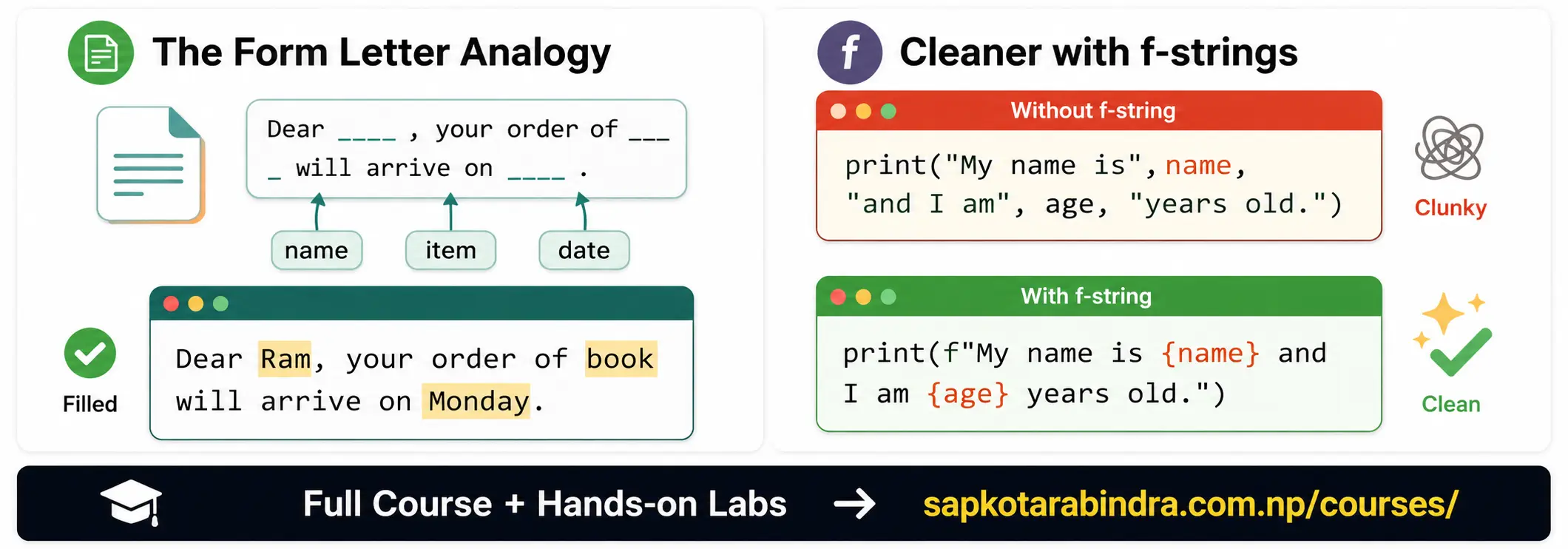
- Imagine a form letter with blanks:
Dear ___, your order of ___ will arrive on ___.
If we have values stored in variables, f-strings help us fill those blanks automatically.
Example
name = "Ram"item = "book"date = "Monday"print(f"Dear {name}, your order of {item} will arrive on {date}.")Output: Dear Ram, your order of book will arrive on Monday. f-strings are used to create formatted output by placing variables or expressions directly inside a string. Syntax:f"Text {variable}"📌 We must writefbefore the string. 📌 Variables or expressions are written inside curly braces{ }.
2.1 What are f-strings?
- Without f-string:
name = "Rabindra"age = 30print("My name is", name, "and I am", age, "years old.")Output: My name is Rabindra and I am 30 years old. Using f-string:print(f"My name is {name} and I am {age} years old.")Output: My name is Rabindra and I am 30 years old. ✅ f-strings make the output cleaner and easier to understand. - We can also write expressions inside curly braces.
Example:
age = 30print(f"Next year, I will be {age + 1} years old.")Output: Next year, I will be 31 years old.
2.2 Why use f-strings?
2.3 Using Expressions inside f-strings
3. Format Specifiers
- A format specifier is a short instruction that tells Python exactly how we want a value to look. It is similar to choosing formatting options in Word, such as alignment, spacing, or decimal places.
Format specifiers are used inside f-strings to customize output. They help us control:
📏 Width
🎯 Decimal places
↔️ Alignment
✨ Padding characters
Syntax:
f"{variable:format_specifier}" - We can control the number of digits after decimal point.
Example:
num = 3.14159print(f"{num:.2f}")Output: 3.14 Here,.2fmeans display the number with 2 digits after decimal point. - Width means the minimum space given to display a value.
Example:
num = 123print(f"{num:10}")Output: 123 Here, width 10 means Python uses 10 spaces to display the value. - We can align values using:
<➜ Left align>➜ Right align^➜ Center align Example:item = "Apple"print(f"{item:<10}")# Left alignedprint(f"{item:>10}")# Right alignedprint(f"{item:^10}")# Center aligned
3.1 What are Format Specifiers?
3.2 🎯 Decimal Formatting
3.3 📏 Width Formatting
3.4 ↔️ Alignment
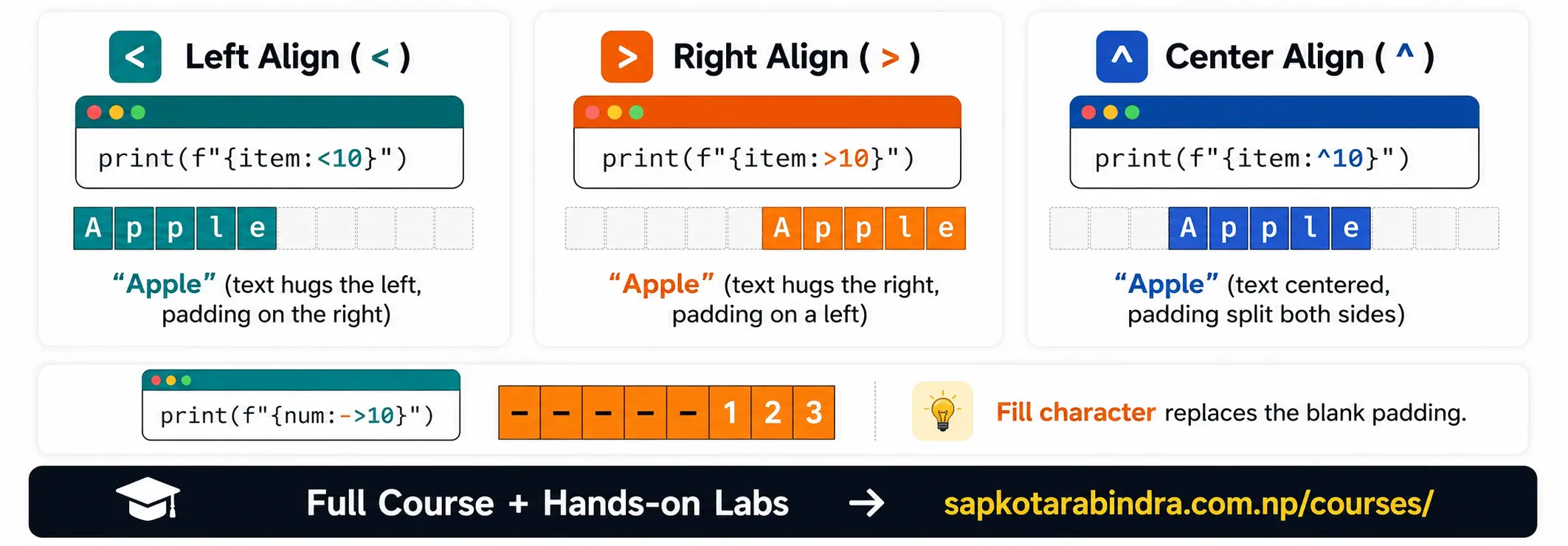
- We can fill empty spaces with a character.
Example:
num = 123print(f"{num:->10}")# ➜ -------123print(f"{num:-<10}")# ➜ 123-------print(f"{num:#^11}")# ➜ ####123#### - Example:
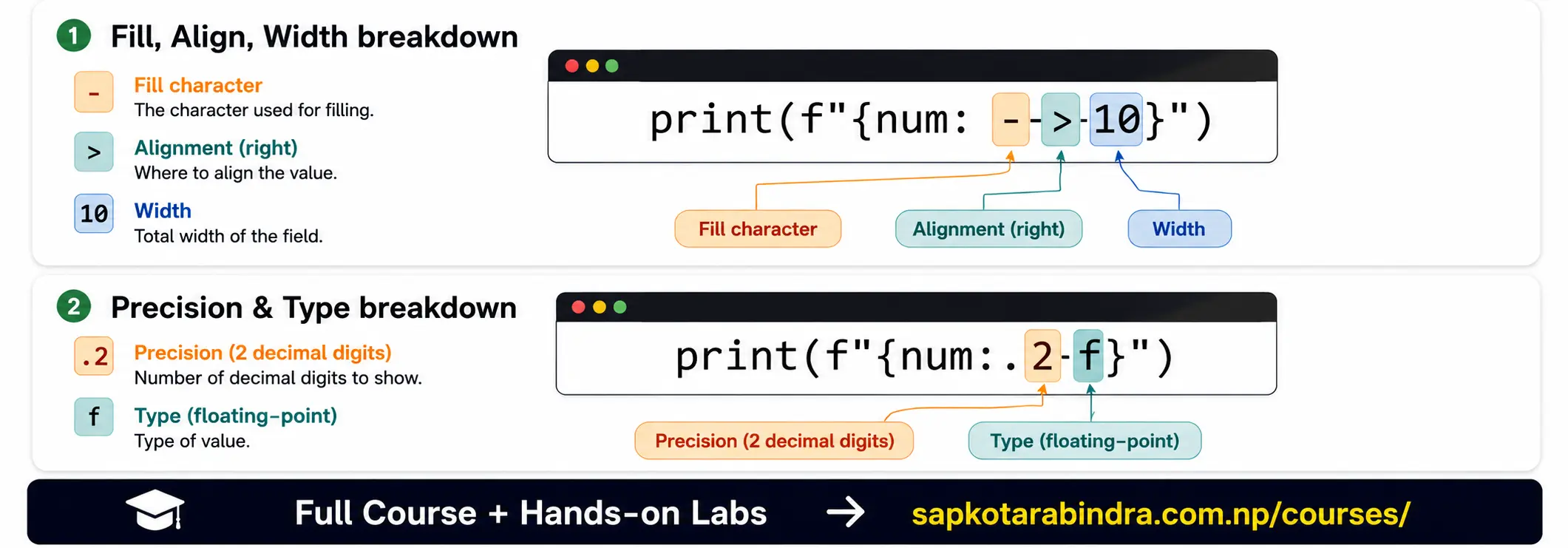
print(f"{num:->10}")Here:-➜ Fill character>➜ Right alignment10➜ Width Example:print(f"{num:.2f}")Here:.2➜ Two digits after decimalf➜ Floating-point number
3.5 ✨ Fill Character
3.6 Format Specifier Breakdown
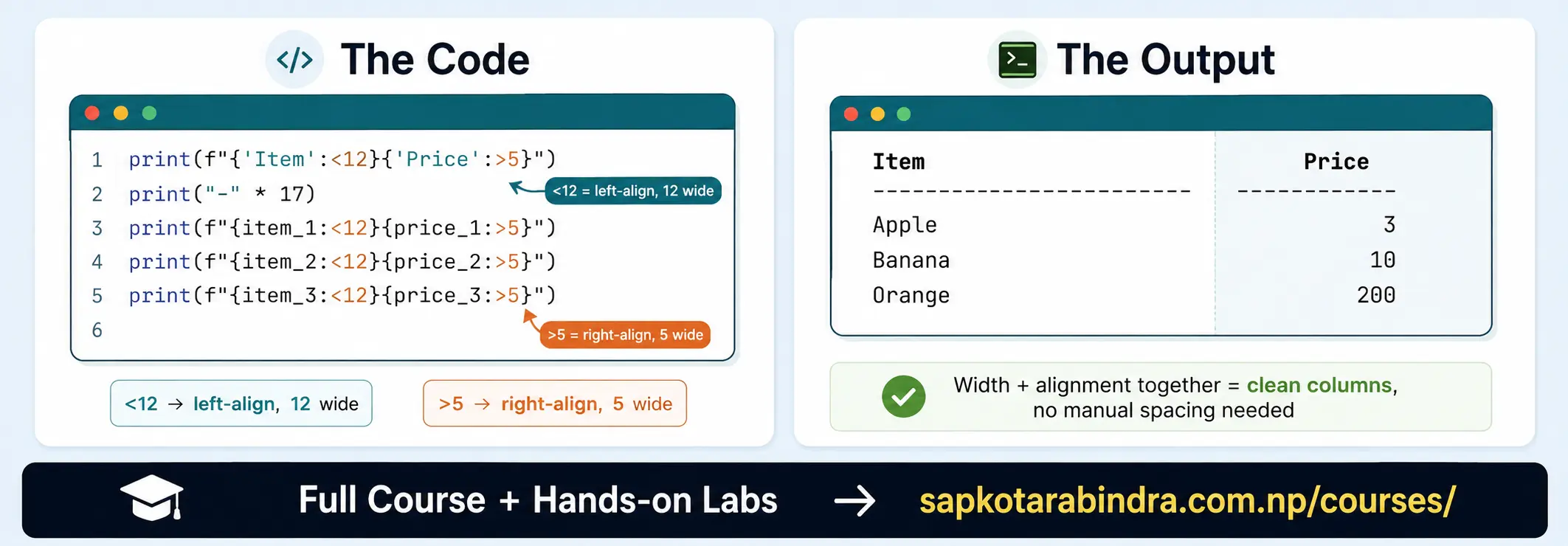
item_1 = "Apple"price_1 = 3item_2 = "Banana"price_2 = 10item_3 = "Orange"price_3 = 200print(f"{'Item':<12}{'Price':>5}")print("-" * 17)print(f"{item_1:<12}{price_1:>5}")print(f"{item_2:<12}{price_2:>5}")print(f"{item_3:<12}{price_3:>5}")Output: Item Price ----------------- Apple 3 Banana 10 Orange 200
3.7 Table-like Output Example
3.8 Format Specifier Summary
| Specifier | Description |
|---|---|
| Fill | Character used for padding the output (default is space). Has to be single character |
| Align | Alignment of the output: < for left, > for right, ^ for center. Default: > for numbers and < for strings |
| Width | Minimum width of the output |
| Precision | Number of digits after decimal point for floating-point numbers |
Format Specifier Summary Table
4. User Input
input()is used to take input from the user. Example:name = input("Enter your name: ")print(f"Hello, {name}!")If user entersRabindra, output will be: Hello, Rabindra!input()always returns data as a string. Example:num_1 = input("Enter first number: ")num_2 = input("Enter second number: ")print(num_1 + num_2)If user enters: 10 5 Output: 105 😕 Why did Python show 105 instead of 15? This happened becauseinput()returns values as strings. So Python joined "10" and "5" as text.
4.1 ⌨️ What is input()?
4.2 ⌨️ input() Always Returns String
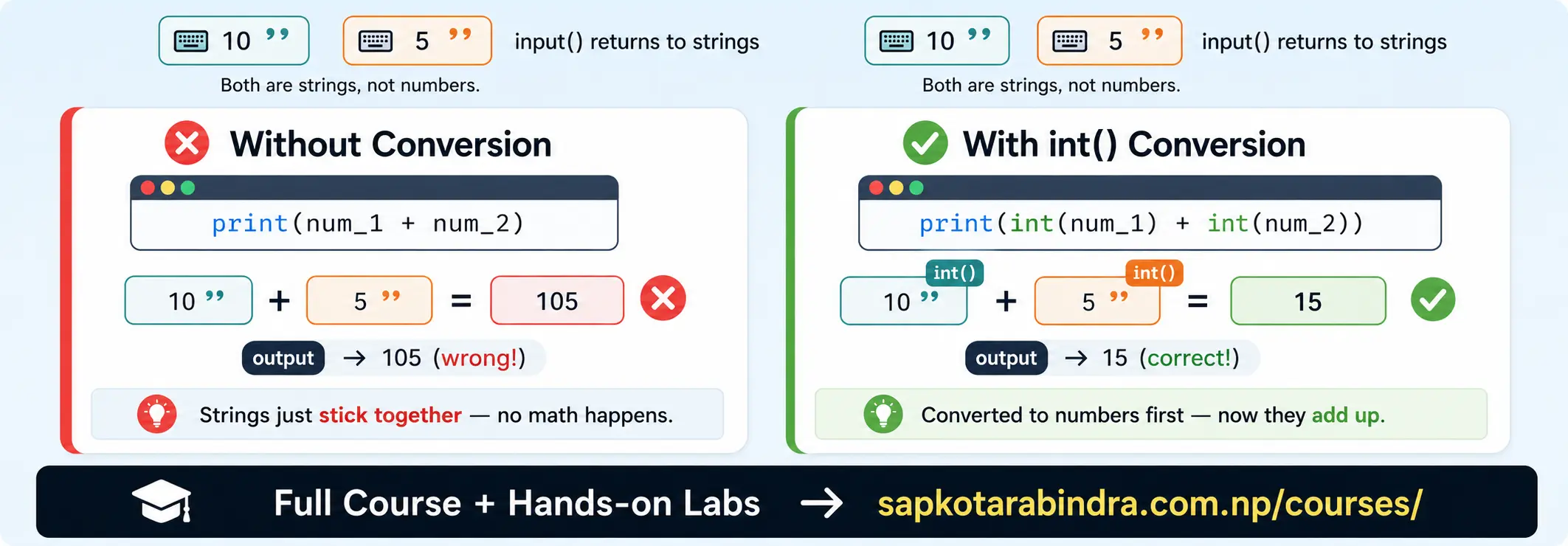
- To perform mathematical operations, we need to convert input into number.
Example:
num_1 = int(input("Enter first number: "))num_2 = int(input("Enter second number: "))total = num_1 + num_2print(f"Sum = {total}")If user enters: 10 5 Output: Sum = 15 - If the input can contain decimal value, use
float(). Example:price = float(input("Enter price: "))print(f"Price = Rs. {price:.2f}") length_in_cm = float(input("Enter length in cm: "))length_in_m = length_in_cm / 100print(f"Length = {length_in_m:.2f} m")
4.3 ⌨️ Type Conversion with input()
4.4 ⌨️ Taking Float Input
4.5 ⌨️ Input and Calculation Example
5. Comments
- Comments are notes written inside code. They are not executed by Python. Comments are used to: 📝 Explain code 📌 Improve readability 🧠 Help us remember logic
- Single-line comments start with
#. Example:# This program displays a greeting messagename = "Rabindra"print(f"Hello, {name}!") - Comments can also be written beside code.
Example:
age = 30# stores age of userprint(age) - Python does not have a separate multi-line comment symbol like some other languages. However, triple quotes can be used to write multi-line notes when they are not assigned to a variable.
Example:
"""This program takes user informationand displays it in a formatted way."""name = "Rabindra"print(name)📌 Triple quotes actually create multi-line strings, but beginners often use them as block notes. - In VS Code, we can use:
Ctrl + /to comment or uncomment selected lines.
5.1 What are Comments?
5.2 Single-line Comments
5.3 Inline Comments
5.4 Block Notes using Triple Quotes
5.5 Comment Shortcut in VS Code